

About this guide
Cockpit Vector G1000 NXi is an unofficial reimplementation of the G1000 NXi integrated flight deck for X-Plane 12. This page covers the product: installers, the in-sim plugin, external standalone windows, updates, nav data, and per-aircraft files (EIS, CAS, checklists, boot art).
It does not teach how to fly or program a G1000. Softkeys, flight planning, VNAV, and procedures follow the real unit — use Garmin’s Pilot’s Guide and Cockpit Reference Guide for that.
Installation
Download the installer for your OS from the product page or the release archive. Each package can install:
- X-Plane plugin — in-cockpit glass plus data bridges the standalone app needs (flight plan, keys, EIS, nav).
- Standalone app — dedicated PFD and MFD windows for extra monitors or a second PC.
On the machine that runs X-Plane, install the plugin even if you only use external displays. The plugin is what streams the live FMS, bezel keys, aircraft packs, and nearby nav data to the standalone app.
Windows
- Run
cockpit-vector-g1000nxi-setup-…exe. It is a per-user install — no administrator prompt. -
Choose an install type:
- Sim PC — plugin and standalone (typical).
- Display PC — standalone only, for a second computer on the LAN.
- X-Plane plugin only — no desktop app.
- If you install the plugin, pick the folder that contains
X-Plane.exeandResources. -
Display Setup (standalone): assign PFD/MFD monitors, use
Identify monitors if needed, and set the
X-Plane host IP to
127.0.0.1on the sim PC, or the sim PC’s LAN address on a display PC.
macOS
- Open the
.dmg(Developer ID signed and notarized on release builds). - Double-click Install Plugin and choose your X-Plane 12 folder. Restart X-Plane or use Plugins → Reload Plugins.
- Drag Cockpit Vector G1000 NXi into
/Applications(or run it from the disk image). - Optional: after the app is in Applications, double-click Start at Login. Remove it later in System Settings → General → Login Items.
If macOS says the app is damaged, Gatekeeper blocked the download. Re-download the current release. Releases should open cleanly once notarized.
Linux
- Extract
cockpit-vector-g1000nxi-installer-linux-….tar.gz. - Run
installer/install.shand point it at your X-Plane 12 folder. The plugin is copied toResources/plugins/CockpitVector_G1000NXi. - When prompted, install the standalone app as well. It lands in
~/.local/share/g1000-nxiwith a launcher symlink in~/.local/bin. - Enter the X-Plane host IP (default
127.0.0.1) and optionally enable a desktop icon or start-at-login.
The Linux script always installs the plugin, so it needs an X-Plane
folder. On a display-only Linux PC, copy
installer/standalone/ from the archive to
~/.local/share/g1000-nxi and set the host in Settings
instead.
In-sim plugin
After install, X-Plane should list Plugins → Cockpit Vector G1000 NXi. From that menu you can:
- Replace in-sim G1000 displays — take over the aircraft’s 3D-cockpit PFD/MFD.
- Aircraft Layout — Auto (from the loaded airframe), or force Cessna 172S, Cirrus SF50, or Piper PA-46T EIS/CAS/checklist/boot assets.
- Enable standalone data bridges — required for external windows. Leave this on if you use the standalone app.
- Accept connections — Localhost only (same PC), Any LAN (second PC on your network), or Last client IP.
- Install Update — enabled when a newer release exists. Opens the installer download in your browser. The plugin never hot-reloads itself.
Plugin files live at
Resources/plugins/CockpitVector_G1000NXi/ inside your
X-Plane 12 install. Prefer custom CAS, checklist, EIS, and boot
files next to the aircraft’s .acf
so installer updates do not replace them — or use ICAO-keyed files
under the plugin assets/ tree (see
Aircraft assets).
Standalone displays
The standalone app opens a PFD window and an MFD window and talks to X-Plane over the network. Use it on extra monitors, a dedicated panel PC, or next to the sim on the same machine.
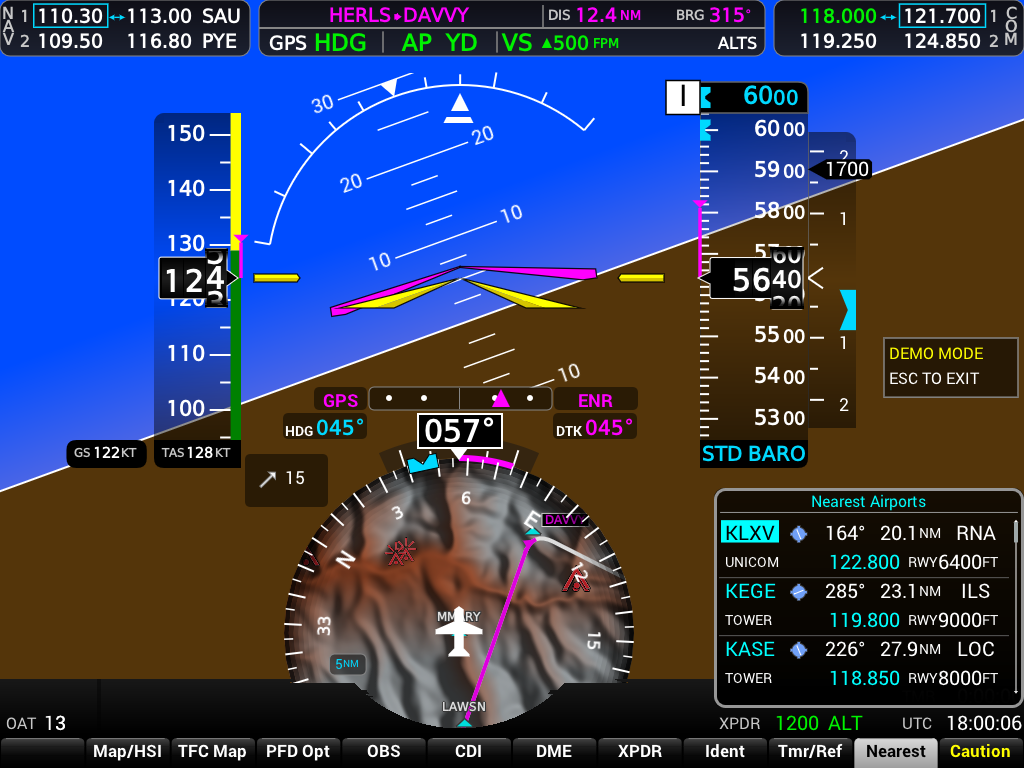
Same PC as X-Plane
- Install the plugin and the standalone app.
- Start X-Plane, load an aircraft, and leave Enable standalone data bridges on (Localhost is fine).
- Launch Cockpit Vector G1000 NXi. Host should be
127.0.0.1. - Press the bezel ENT key (or bind the matching X-Plane command) to leave the power-up page.
Second PC (display only)
- Plugin on the sim PC. Standalone on the display PC.
- On the sim PC, set accept connections to Any LAN (or Last client IP after the first connect).
- On the display PC, set X-Plane host to the sim PC’s LAN IP (Settings, or the Windows installer Display Setup page).
- Allow UDP through the firewall on both machines — see the table below.
With the plugin bridges enabled, the display PC does not need a local X-Plane install. Flight plan, gauges, EIS/CAS/checklists, nearby navaids, and terrain samples stream from the sim.
Settings
Open Settings from the Windows notification-area icon or the macOS menu-bar extra (on macOS, Cmd+, also works from the menu). Changes apply immediately except the X-Plane host (reconnect after you change it).
Panel PFD/MFD windows do not take keyboard focus — use Settings for full screen, bezel, title bar, always-on-top, monitors, mute terrain/traffic callouts, and start at login. Acknowledge the power-up page with the bezel ENT key (or an X-Plane keyboard/joystick binding to that command). Quit from the tray or menu-bar extra.
Window positions are remembered. Use Identify monitors in Settings (or the installer) to see which screen is which. Each display letterboxes a 4:3 image so the layout stays correct.
Mute terrain/traffic callouts silences FLTA/TAWS and traffic voice callouts. It does not turn off CAS warning and caution chimes — those stop when you acknowledge the flashing Warning/Caution softkey. See Crew Alerting.
Until X-Plane is running and sending data, instruments show a large red X — a failed data source, not a black unpowered screen. See FAQ.
Network ports
On a second PC, allow these UDP ports through the firewall (Private network profile on Windows). Same-PC setups usually work without extra rules.
| Port | Used for |
|---|---|
| 49000 | X-Plane instrument data (RREF) |
| 49100 | Live flight plan |
| 49101 / 49102 | Bezel keys and softkeys → standalone |
| 49103–49110 | Radar, gauges, aircraft identity, EIS/CAS/checklists, nav, terrain, audio |
| 4000 / 48002 | ADS-B weather and traffic (GDL90) |
Updates
New builds are published as prereleases on G1000 NXi releases.
-
Standalone checks
https://cockpitvector.com/releases.jsonon launch. If a newer version exists it downloads that OS’s installer, verifies it against the releaseSHA256SUMS, applies it, and relaunches. Failed checksums fall back to opening the release page. - Windows: silent per-user setup — no admin prompt.
-
macOS: mounts the new
.dmg, replaces the app bundle, and reopens it. Native dialog. -
Linux: extracts the
.tar.gzover~/.local/share/g1000-nxi. Prompt useszenityorkdialogwhen available. - In-sim plugin does not download or reload itself (that crashed X-Plane). A PFD Alerts advisory appears instead; use Plugins → Cockpit Vector G1000 NXi → Install Update to open the installer in the browser, then restart or reload plugins.
Keep the plugin and standalone on the same release when you use external displays. Mismatched bridges fail closed — no live flight plan, packs, or key forwarding.
Navigation data
The moving map, procedures, airways, and airport diagrams come from
X-Plane’s navigation databases — the same
earth_nav.dat, CIFP, airspaces, and apt.dat
files X-Plane already uses. There is no separate Cockpit Vector
navdata subscription.
- Plugin / same PC: databases are read from the X-Plane install (Custom Data first, then default data). Navigraph or other X-Plane cycle updates you already installed are picked up automatically.
- Standalone on a second PC: with the plugin bridges enabled, nearby navaids, airspaces, airways, airport diagrams, and procedures stream from the sim. You do not copy nav folders to the display PC.
- Bundled map extras (coastlines, elevation, FAA obstacles) ship inside the installer. Missing optional layers just stay empty.
If you ever run standalone without the plugin, the map is
blank unless that PC has X-Plane or a copied nav tree. Point at a
copy with the --nav-data-dir flag (layout should match
an X-Plane install root: Custom Data/,
Resources/default data/, CIFP, airspaces,
Global Scenery/…/apt.dat). Live gauges still come
from --xplane-host. The intended setup is: install
the plugin on the sim.
The MFD power-up page’s Navigation Data row reflects the loaded cycle. Other database rows are representative trainer-style values.
Weather and traffic
NEXRAD on the map and ADS-B traffic come from X-Plane’s ADS-B / FIS-B (GDL90) broadcast — simulator weather, not live internet radar.
- In X-Plane 12 → Settings → Network, enable broadcasting to external apps (ADS-B / GDL90). Keep
255.255.255.255:48002if you also use ForeFlight. - The Map Opt → NEXRAD softkey stays grey until FIS-B radar blocks arrive. Heartbeats and traffic alone do not enable it.
- WPT → Weather Information uses the same datalink for METAR/TAF. The Weather Radar page is the airframe’s onboard radar, when equipped.
On Windows, same-PC broadcast to 48002 is not delivered to other local apps. The standalone uses ForeFlight-style discovery (UDP 63093) and unicast on UDP 4000. If weather still never arrives, add a localhost row in X-Plane’s Network settings and allow UDP 4000 / 48002 / 49000 inbound on a Private profile.
Aircraft assets
EIS, CAS, checklists, and the MFD boot hero image are plain files, not compiled into the program. Add or override them for any airframe without a rebuild. Bundled samples cover the Cessna 172, Cirrus Vision Jet SF50, and Piper PA-46T.
Recommended for customizations that should survive
updates: put the files in the aircraft folder, next to
the loaded .acf. The Cockpit Vector installer only
writes under
Resources/plugins/CockpitVector_G1000NXi/ — it never
touches Aircraft folders — so those overrides stay in place when
you install a newer release. ICAO-keyed files under the plugin
assets/ tree work too, but matching bundled names
can be replaced on update.
Search order (first match wins):
- A file next to the loaded
.acf(plugin only) — see the aircraft-folder table below. - An ICAO-keyed file in the plugin assets folder, using the aircraft’s
acf_ICAOin lowercase (for examplec172,sf50,tbm9). - The bundled profile default for known types; otherwise the Cessna piston set.
Aircraft-folder filenames (beside the .acf;
<acf_stem> is the .acf basename
without the extension):
| Kind | Next to .acf |
|---|---|
| EIS | g1000_eis.txt or <acf_stem>_eis.txt |
| CAS | g1000_cas.txt or <acf_stem>_cas.txt |
| Checklist | g1000_checklist.txt or <acf_stem>_checklist.txt |
| Boot hero | g1000_boot.png or <acf_stem>_boot.png |
Plugin assets folder:
X-Plane 12/Resources/plugins/CockpitVector_G1000NXi/assets/
| Kind | ICAO-keyed drop-in |
|---|---|
| EIS | assets/eis/<icao>.eis |
| CAS | assets/cas/<icao>.cas |
| Checklist | assets/checklists/<icao>.checklist |
| Boot hero | assets/boot/<icao>.png |
EIS, CAS, and checklist files hot-reload: save
while the display is running and the next frame re-parses them.
Boot art is picked up on the next power-up (or when you change
aircraft). Blank lines and # comments are ignored.
With the plugin on the sim PC, the standalone receives the same
pack automatically over the aircraft-pack bridge. You do not copy
those files to the display PC. Without the plugin, point the
standalone at a file with --eis, --cas,
or --checklist.
Copy a bundled sample from
CockpitVector_G1000NXi/assets/ and edit — that is the
format reference.
Engine Indication System (EIS)
The EIS strip on the left of every MFD page is described by a
.eis file: a title, a layout style, gauges, and
BIND lines that map logical channels to X-Plane
datarefs.
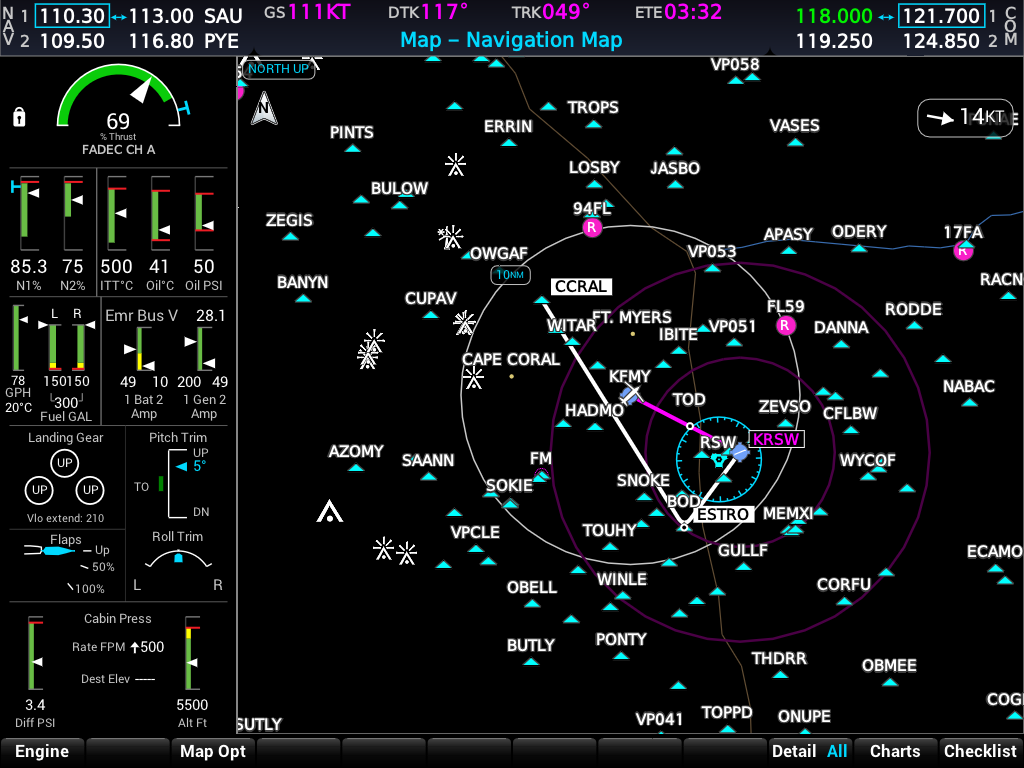
STYLE TURBOFAN grid from a drop-in .eis file.STYLE selects the strip family:
- PISTON (default) — Cessna-style column: RPM dial, bars, fuel, electrical.
- TURBOFAN — Vision Jet–style grid (% thrust, turbine bars, synoptics).
- TURBOPROP — Meridian-style column of dials (torque, ITT, prop, Ng).
TITLE ENGINE
STYLE PISTON

GAUGE RPM_DIAL
  CHANNEL eng.rpm
  MIN 0 MAX 2700
  REDLINE 2700
  BAND GREEN 2100 2500
  BAND RED 2500 2700

SECTION
GAUGE BAR
  LABEL Oil PRES
  CHANNEL eng.oil_pres
  MIN 0 MAX 115
  BAND RED 0 20
  BAND GREEN 50 82

# BIND <channel> <dataref> <scale> <offset>
# display = raw * scale + offset
BIND eng.rpm sim/cockpit2/engine/indicators/engine_speed_rpm[0] 1 0
BIND eng.oil_pres sim/cockpit2/engine/indicators/oil_pressure_psi[0] 1 0
Useful gauge types: RPM_DIAL, DIAL, BAR, READOUT, ELECTRICAL (paired left/right), FUEL_QTY / FUEL_QTY_VERT. Optional keys include LABEL, FORMAT, TICKS, SCALE (end numerals on a bar), BUG, and PFD (keep this gauge on the PFD reversionary strip for turbofan layouts).
Channels are the names gauges and BIND lines agree on
(eng.rpm, fuel.qty_left,
elec.bus_main, plus jet/turboprop names in the SF50
and PA-46T samples). Prefer copying a bundled file over starting
from scratch.
Crew Alerting System (CAS)
The PFD CAS window and the flashing Warning/Caution softkey come
from a .cas file. Each message has text, severity,
a dataref, a WHEN condition, and an optional
INHIBIT line. To keep a custom set across installer
updates, place g1000_cas.txt (or
<acf_stem>_cas.txt) next to the aircraft
.acf — see Aircraft assets.
MESSAGE WARNING OIL PRESSURE
  DATAREF sim/cockpit2/engine/indicators/oil_pressure_psi[0]
  WHEN < 20
  INHIBIT GROUND

MESSAGE WARNING LOW VOLTS
  DATAREF sim/cockpit2/annunciators/low_voltage
  WHEN nonzero
  INHIBIT ESDI ESI GROUND

MESSAGE CAUTION OIL TEMP
  DATAREF sim/cockpit2/annunciators/oil_temperature_high[0]
  WHEN nonzero
Severity is WARNING, CAUTION, or
ADVISORY. WHEN accepts
nonzero (default for annunciator flags),
zero, comparisons (==, !=,
<, <=, >,
>=), between lo hi, and
outside lo hi. Optional SCALE /
OFFSET apply as value = raw * scale + offset
before the test — same idea as EIS BIND.
Optional INHIBIT tags mute the chime only
— the CAS line still displays. Combine phases on one line
(Pilot’s Guide Appendix A):
GROUND— on the ground (airspeed and ground speed both below 40 kt)ESDI— engine shutdown on the groundESI— engine start on the ground
Chimes: Warning is a continuous tone until you press the flashing Warning softkey (or the condition clears). Caution is a single chime when the message appears. Advisory has no CAS chime.
The right-most PFD softkey is Alerts. While it flashes Warning or Caution, the first press acknowledges that level and the label returns to Alerts. Messages acknowledges system advisories and opens the Alerts window. A steady Alerts key toggles that window (AHRS/ADC/GPS text, not the CAS stack).
Prefer X-Plane annunciator datarefs when the airframe already lights them. Numeric thresholds on temperatures can false-trip if the sim’s units are not what you expect.
Checklists
The MFD Checklist page group reads a .checklist file:
groups, named checklists, and items. Press ENT/CLR to check items
off, as on the real unit. For a custom set that survives installer
updates, put g1000_checklist.txt (or
<acf_stem>_checklist.txt) next to the aircraft
.acf — see Aircraft assets.
GROUP NORMAL PROCEDURES

  CHECKLIST BEFORE STARTING ENGINE
    Preflight Inspection : COMPLETE
    Fuel Selector : BOTH
    Avionics Switch : OFF
    A note with no colon
Split the expected response on the first :
(space-colon-space). A line with no colon is a note. Bundled
Cessna 172 and Vision Jet sets ship in
assets/checklists/.
Boot logos
After the logo splash on both displays, the MFD shows the NXi power-up page: shared G1000 NXi wordmark, a large airframe hero image, a database list, and an ENT prompt. Layout is shared; only the hero PNG and the airframe name change per type.
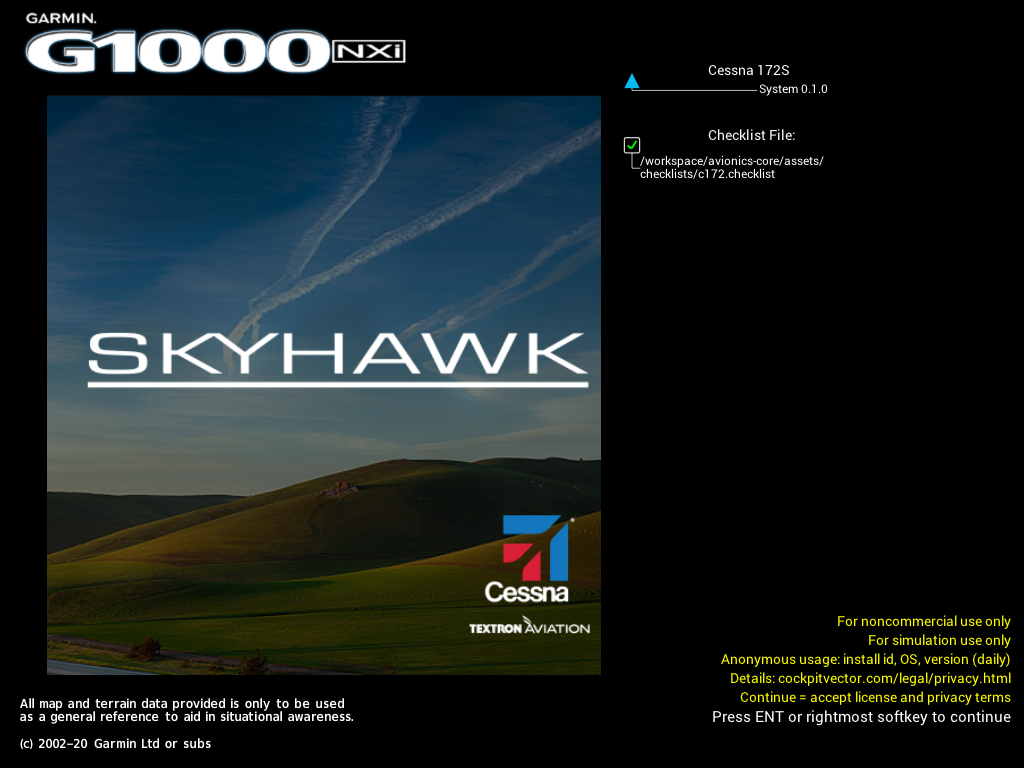
Hero image, first match wins:
g1000_boot.pngor<acf_stem>_boot.pngnext to the.acf(plugin) — survives installer updates.assets/boot/<icao>.pngin the plugin folder (any aircraft, no rebuild).- Bundled default for the detected profile (for example
boot/c172.png).
Use a PNG. The airframe name on the first database row comes from the built-in profile for known types, or the ICAO code otherwise. Press ENT on the bezel (or bind the matching X-Plane command) to continue. Full load order and the update-safe aircraft-folder pattern are under Aircraft assets.
SimBrief and Navigraph charts
AUX → SIMBRIEF signs in with Navigraph’s device flow and fetches the latest SimBrief OFP for that account.
- Standalone — the OFP is saved to the Flight Plan Catalog. Open FPL → Flight Plan Catalog and Activate to make it the active route (written to X-Plane through the flight-plan bridge). Login/FETCH stay disabled until there is a live sim link.
- Plugin — the OFP replaces the active in-sim route immediately.
Airport charts appear on the WPT page when you are signed in. Navigraph traffic is limited to a connected simulator session.
Hardware bindings
Every bezel key, softkey, knob detent, and the RANGE/pan control is bindable in X-Plane → Settings → Keyboard or Joystick.
-
Stock G1000 commands
(
sim/GPS/g1000n1_*,sim/GPS/g1000n3_*) are intercepted, so existing aircraft or hardware bindings keep working. -
Dedicated commands live under
cockpit_vector_g1000nxi/(search “Cockpit Vector G1000 NXi”):pfd/*,mfd/*(softkeys, FMS knobs, ENT/CLR, range, pan), andradio/*for COM/NAV.
With the plugin installed, those same commands are forwarded to standalone windows over the command bridge — including when in-sim glass takeover is off. Physical bezels, Stream Deck (SPAD.neXt profiles ship in the project), and joystick bindings can drive external monitors.
How do I get support?
Questions, bugs, or hangar talk — join the Cockpit Vector Discord. That is the public community for G1000 NXi. Come as you are; no ticket form required.
FAQ
How do I get support?
Jump into the Cockpit Vector Discord — questions, bug reports, and hangar talk are all welcome. More under How do I get support?
The Warning or Caution softkey is flashing. What do I press?
Press that flashing key once to acknowledge. The tone stops and the label returns to Alerts. A second press on steady Alerts opens the system-message window. Details under Crew Alerting.
What does Mute terrain/traffic callouts do?
It silences FLTA/TAWS and traffic voice callouts in standalone Settings. CAS warning and caution chimes still play until you acknowledge them with the Warning/Caution softkey. See Crew Alerting.
Does freeware send usage data?
After you accept the installer terms (or continue past the boot notice on update), freeware builds may send a once-per-day ping with a random install id, OS name, and software version — not your name, email, IP, or flight data. See Privacy.
Why are my screens black?
There is no power. The displays stay dark until the aircraft electrical and avionics buses are powered — same as a real G1000. Turn on battery / master and the avionics master (and any other buses that airframe uses) in the sim.
The PFD comes up with master/battery and usable bus voltage (a dead battery with the master still on still leaves the glass black). The MFD also needs the avionics bus. That is different from a red-X “no data” failure: red X means the display is powered but is not receiving a live data feed (X-Plane not running, wrong host IP, or bridges off). A fully black screen is unpowered, not a missing UDP packet.
Do I need both the plugin and the standalone app?
Use the plugin if you want in-cockpit glass, or if you use standalone windows at all — the plugin is what forwards the flight plan, keys, aircraft packs, and nav. Use standalone when you want PFD/MFD on extra monitors or another PC. Many people run both: plugin on the sim, standalone on the panel screens.
The standalone opens but instruments show red X’s.
The glass is powered and waiting for data. Start X-Plane,
confirm the plugin is loaded, and set X-Plane host to
127.0.0.1 on the same PC or the sim’s LAN IP on
a second PC. Enable standalone data bridges
and, across the LAN, Any LAN. Check the
firewall ports listed under
Standalone displays.
The map is blank on my display PC.
Install the plugin on the sim and enable the data bridges.
Nearby nav and terrain then stream over. Without the plugin,
standalone has no nav-data feed and will not invent a map —
copy an X-Plane nav tree and use
--nav-data-dir only as a fallback.
How do I update?
The standalone prompts on launch, verifies the installer checksum, and applies it. The in-sim plugin never updates itself — use the PFD advisory and Plugins → Install Update, then reload plugins. Keep plugin and standalone on the same version. Older releases stay on the releases page.
NEXRAD is greyed out.
Enable X-Plane’s ADS-B / GDL90 network broadcast. The overlay waits for FIS-B radar blocks, not just traffic. On Windows with ForeFlight on an iPad, same-PC weather uses UDP 4000 after discovery — see Weather and traffic.
EIS, CAS, or checklists don’t match my aircraft.
Unknown airframes fall back to the Cessna piston set. Prefer
putting g1000_eis.txt /
g1000_cas.txt /
g1000_checklist.txt next to the
.acf so updates do not overwrite them. You can
also drop ICAO-keyed files into the plugin
assets/ folders. Copy a bundled sample and edit;
files hot-reload. You can also force a bundled layout from
Plugins → Aircraft Layout.
Will an update overwrite my custom CAS, checklists, or boot art?
Not if they live in the aircraft folder. Place
g1000_cas.txt, g1000_checklist.txt,
and g1000_boot.png (or the
<acf_stem>_* variants) next to the
loaded .acf. The installer only updates the
plugin under
Resources/plugins/CockpitVector_G1000NXi/.
Files under that plugin assets/ tree with the
same name as a bundled sample can be replaced on update —
see Aircraft assets.
How do I change the boot / power-up airplane picture?
Add a PNG as g1000_boot.png beside the
.acf (survives installer updates), or
assets/boot/<icao>.png in the plugin
folder. It appears on the next power-up cycle. Details under
Boot logos.
macOS says the app is damaged.
Gatekeeper blocked the download. Use the current notarized release from the site. After a successful first launch, in-app updates replace the bundle in place.
Can I use this for real flying or payware aircraft?
Simulator use only — not certified avionics, never for real navigation. The software is free for noncommercial use (personal sim flying, freeware, training). Payware aircraft or any for-profit distribution needs a commercial license.